WeMarket delivers record results and invests in the future
WeMarket ends 2024 with the highest gross profit in its history and a bottom line result of 3.1 million.
Take control of your Google Ads campaigns and learn how to optimise your advertising to maximise performance and achieve better results.
It can be overwhelming to keep up with the pace at which Google rolls out changes and new features in Google Ads.
You might find yourself thinking: Am I really on top of everything and in control of my Google Ads advertising?
Google’s ambition is that you can increasingly set up your Google Ads account – define your goal, focus and daily budget – and then let the system handle most of the advertising for you. If you have a good overview and have set up a solid structure, this can actually work quite well.
However, many still prefer to maintain some control over their Ads rather than letting Google run the show. To get a better overview of their advertising, most people check their account to see which keywords are generating clicks – and costs. This at least gives some control over the budget.
But very few people check the fundamental setup or look beyond the numbers, and doing so can sometimes be surprising – even if everything seems to be working well on the surface.
Google is not always forthcoming about the changes it introduces – changes which can significantly affect how your Google Ads account operates and performs.
So, if you are one of those who does not want to hand over the reins entirely to Google, here are a few tips on what you should check to maintain more control over your Google Ads account.
It all comes down to:
1. The budget
2. Controlling your keywords (= costs)
3. How to prevent the account from creating ads automatically
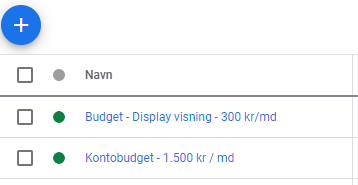
When you set up a new campaign, you need to specify the daily spend. This is, of course, to ensure you do not forget to define the maximum amount in the rush.
However, in your eagerness to launch multiple campaigns, you might overlook the total potential daily spend across all campaigns.
For example, if you copy an existing campaign with a daily budget of 1,000 DKK to create a new one, you have just added another 1,000 DKK to your daily spend.
Solution: Use shared budgets.
Fortunately, you can control your spend quite accurately using the daily budget you set. It may fluctuate from day to day, but Google is usually good at hitting the correct monthly spend.

However, Google can sometimes spend up to twice the daily budget on certain days! There is no need to panic, as the system will balance this out across the month.
But if you – or your manager – do not want to exceed the set daily limit under any circumstances, things get a bit more complicated.
Solution: You can handle this with “automated rules” – and it’s not as complicated as it sounds.
Read more about automated rules here: Get the most out of automated rules in Google Ads
A well-known trick to avoid very expensive keywords is to use long-tail keywords, such as “VW Golf VII 1.6 TDi 110 BlueMotion” instead of just “VW Golf”. By doing this, you accept that there will be fewer searches, and you will need to come up with many long-tail keywords to get enough traffic.
Often, you will encounter the issue of “Low search volume”, and you may find that your ads are not shown at all, even if a keyword matches your offering perfectly. To get a reasonable amount of traffic, it may be necessary to use broader keywords.
Fortunately, you can control how broad a keyword like “VW Golf” should be. The so-called match types – exact, phrase, and broad match – give you more control, especially if you put them in separate ad groups or campaigns.
Exact match often converts better, so it is usually a good idea to separate them.
And this is where it becomes interesting to see which searches users are actually making – in other words, the search terms.
If you have not separated the match types, it can be difficult to identify which keywords are being triggered by which search terms, as they all end up in one big pile. Yet another good reason to at least group them in their own ad groups.
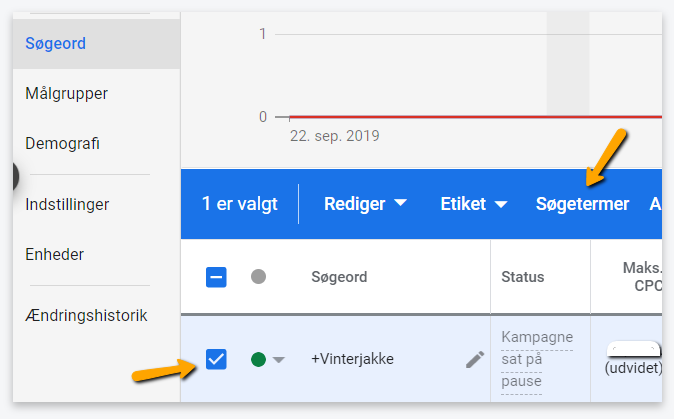
Solution: There is a simple trick you can use to see which search terms are linked to specific keywords. When you tick a keyword, an option appears to view the search terms users have used:

Note: If you use the broad match type – the one without a ” + ” in front of the keyword – you need to be even more aware of which searches are actually triggering the ads. You might find that searches including your brand appear here and muddle the results.
“Exact keywords are just not so exact anymore…”
Unfortunately, you no longer have the same level of control over your exact keywords, as Google has relaxed the rules here too – which can be both positive and negative.
The negative: Google will, to some extent, display your ads for related searches – so-called “Exact match (close variant)”. For example, “VW Golf Van” might be considered a close variant of your keyword “VW Golf” – which may or may not be relevant. This often leads to more clicks (and therefore higher costs) and sometimes a lower conversion rate.
The positive: On the other hand, it can also mean more conversions.
Solution: None, unfortunately.
You simply cannot opt out of this.
Of course, you can regularly review the search terms report and exclude certain variants, but this is not what most people would consider effective control.
There is, in fact, a “solution”, but it is a bit more technical.
You can use so-called scripts (advanced rules) to catch these “close variants” and, for example, automatically pause them if they have not converted within a certain period. You can easily find such scripts on reputable sites for free – but – once you activate them, there is “no way back”, so it is worth consulting an expert who understands them.
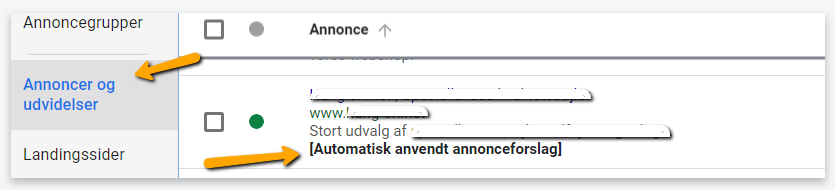
Yes, it sounds strange, but it can actually happen that the system creates a new ad automatically. It can be a bit of a shock the first time you see it:

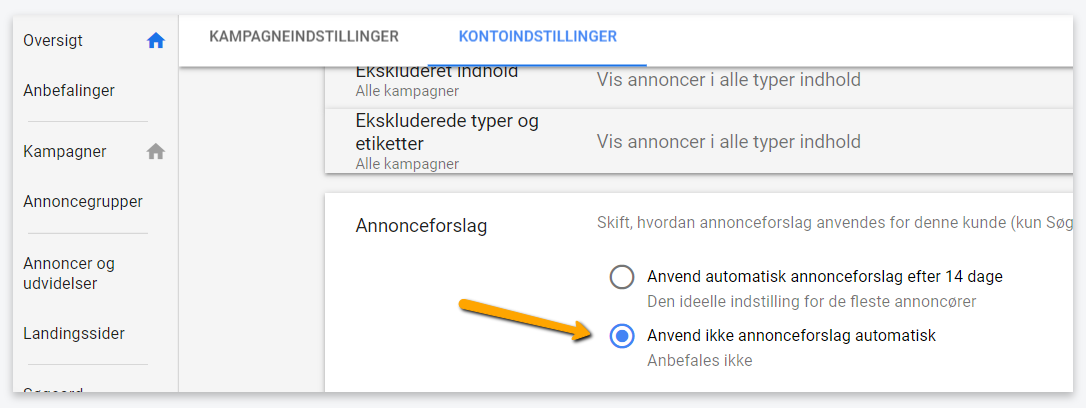
We have not yet seen any major disasters when this happens, but you do lose control over your ad copy. Solution: When automatic ads are created, you will be notified under notifications and you can also disable this feature:

However, if you do not regularly check your Google Ads account and have not disabled this option, you might be in for a surprise.
Those were my three tips on how to get a better overview and more control over your Google Ads account. If you need advice on your Google Ads or help setting up your campaigns, please feel free to get in touch with us.
Contact us here – it is, of course, completely non-binding.
You can also dive deeper into Google Ads setup in these blog posts:
6 things you should know about Google Ads
Introduction to Google Ads
Get more traffic with your brand keywords
At WeMarket, we offer businesses a benchmark report that compares their marketing efforts with their key competitors. You decide which competitors we should compare against.
We specialise in selling physical goods online and growing webshops – and now you can benefit from this expertise, even if you’re not already a client.
It’s completely free.